ChromeDriver Performance C#
Scenario
So you’ve got a good test suite for automated browser testing, however you’re testing a web app with different user roles, or case scenarios, and that 1 minute test has now grown to 5 minutes and is becoming a bottleneck in the development lifecycle. I ran into this exact problem myself.
In this post, we will be looking at how to reduce elapsed time between operations, and overall reduce total test suite execution time.
The Setup
Web Page
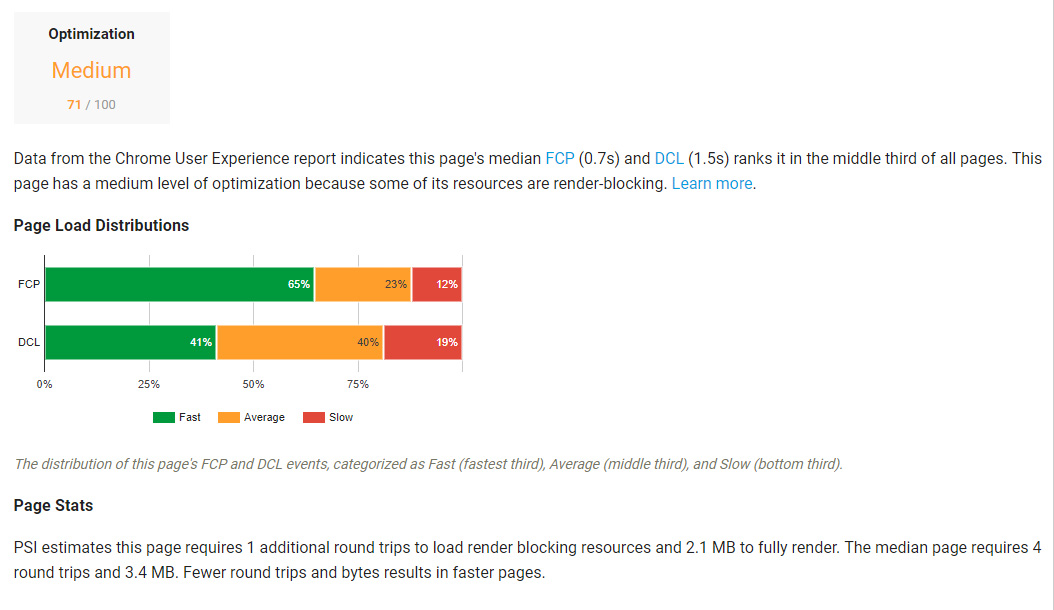
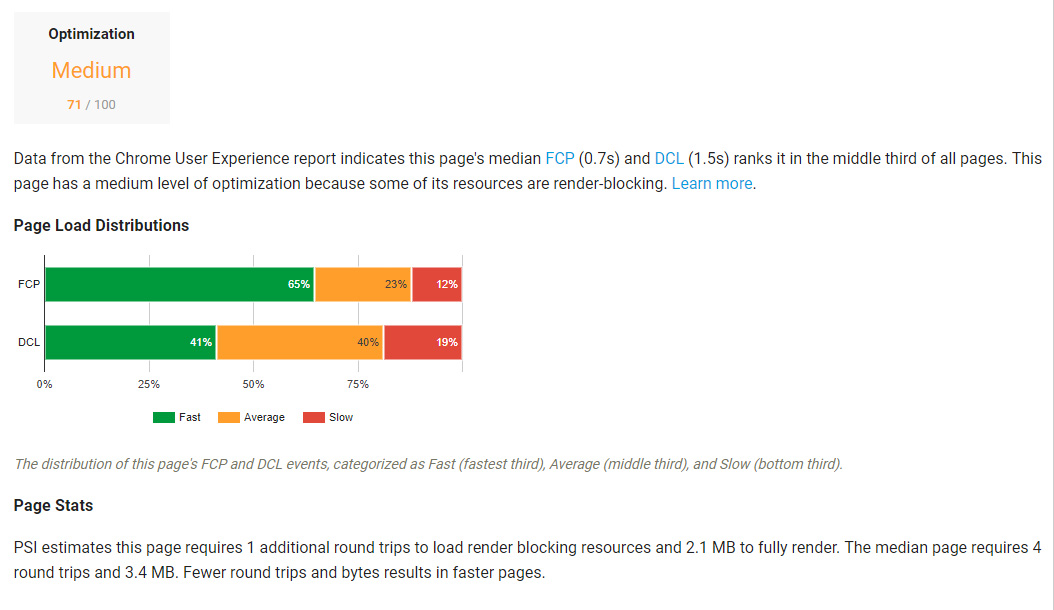
For the post I’ll be using the same website and loading the same web page. I’ve chosen a page with multiple round trips, images, videos, and several megabytes of content to simulate a sizable and real-world web app. Chances are your tests will be fast on static HTML pages regardless of how your tests are written. Below are Google PageSpeed Insights results for this page.
Software
- ChromeDriver 2.33
- Selenium WebDriver 3.6.0
- OS – Windows 10
Performance Tests
As we’re making an HTTP request to a remote server, there are many variables that could affect performance outside of our control. Using explicit or implicit waits doesn’t help us here since they’re designed to wait until a specific element appears via polling the DOM. We want to try to eliminate server variance so we’ll use two test sets, one on a local server, and one remote.
Finding UI Elements
Our most common operation will be finding elements on a page and
checking if their respective values align with our expectations. The
ChromeDriver instance exposes the FindElement
and FindElements methods which we’ll be using to find our
DOM objects. There are several methods to find elements and we’ll be
focusing on the three most popular:
- By XPath
- By ID
- By Class Name
Setup
We’re going to keep this simple and create a blank C# Console Application with the minimum code to test performance, I’ll be using the StopWatch class to store elapsed time for each operation. An arbitrary sample size of 1500 iterations (500 per FindElementBy call) will be used to create an average for our results.
Test Results
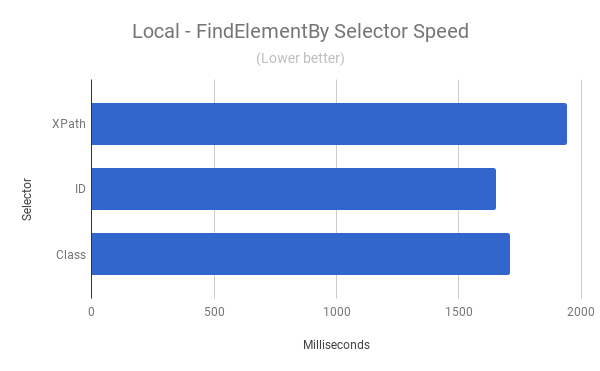
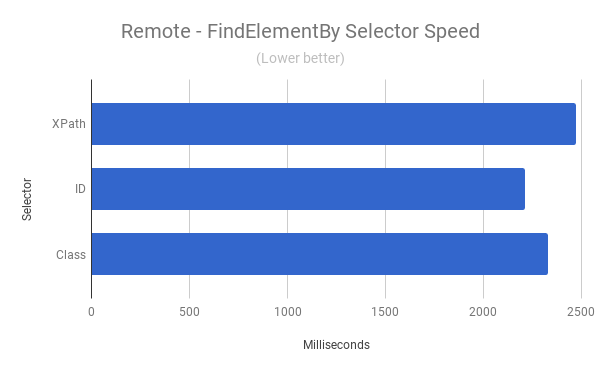
Our results demonstrate that finding an element by ID is the most efficient, this is also in line with the documentation.
Optimizations
So our tests so far look good and produce the expected output, we’re going to use the same two tests whilst trying different methods of potential optimization and observe the output.
Browser Extensions
With the amount of HTTP requests ever increasing, especially 3rd party requests, we may benefit from something which filters requests and reduces them. It makes sense that a faster page would mean faster tests. For this test we’re going to use uBlock Origin, available as a Chrome Extension. I’ve chosen uBlock because it has a lightweight footprint and generally makes Chrome leaner via less CPU & RAM consumed by the browser.
Setup
To use the extension we’ll need to grab the .crx file, (you’ll need a third-party tool such as this) and load it into our ChromeDriver instance. Below is the code for this
var cdOptions = new ChromeOptions();
cdOptions.AddExtension(@"C:\temp\uBlock-Origin_v1.14.20.crx");

//Directory where our Chronium executable is located
var cdFilePath = @"C:\tempMonitor";

var cd = new ChromeDriver(cdFilePath, cdOptions, TimeSpan.FromSeconds(30));
Results
We’re going to compare the results with our remote test
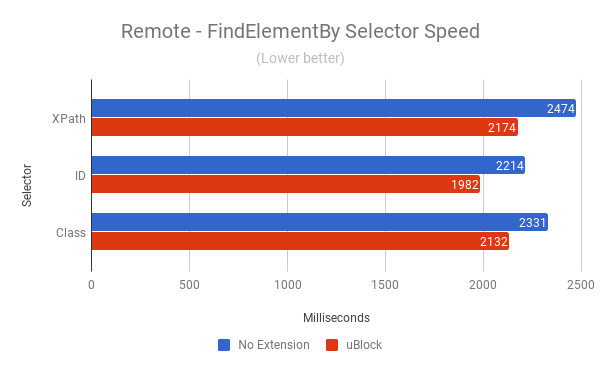
The results speak for themselves; we’re loading a remote page and
finding elements 200-300 milliseconds quicker due to uBlock. This has
another benefit of reducing the probability of a third party HTTP
request hanging and causing the page to never finish loading, which will
eventually cause a TimeOutException.
Headless Chrome
A new feature of ChromeDriver is the ability to run the browser headless, so you won’t get a GUI, but you’ll still be able to see it in process explorer. Headless has advantages in terms of speed as there’s no rendering of the browser, however naturally there are drawbacks like simulating a user’s input and not being able to see a problem on your page. For brevity we’re going to ignore the pros and cons and simply look at performance impact.
Setup
For this setup we’ll simply be passing in the headless argument, in headless mode the console receives a lot of warnings, so we will hide those for now.
var cdOptions = new ChromeOptions();

cdOptions.AddArgument(@"--headless");
cdOptions.AddArguments(@"--log-level=3");

//Directory where our Chronium executable is located
var cdFilePath = @"C:\tempMonitor";

var cd = new ChromeDriver(cdFilePath, cdOptions, TimeSpan.FromSeconds(30));
Results
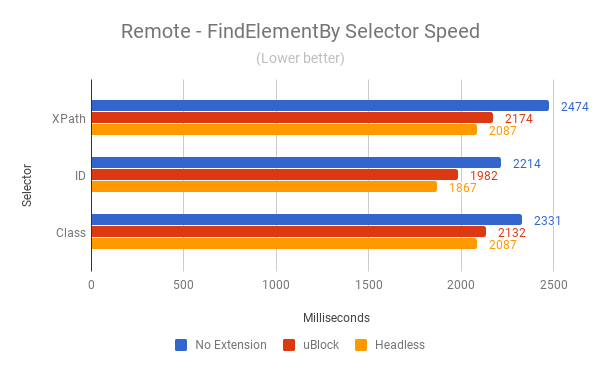
With Chrome in headless mode we’ve taken 300-400 milliseconds off our no-extension tests; over a large test suite this would lead to a great performance increase and the ability to run tests in parallel.